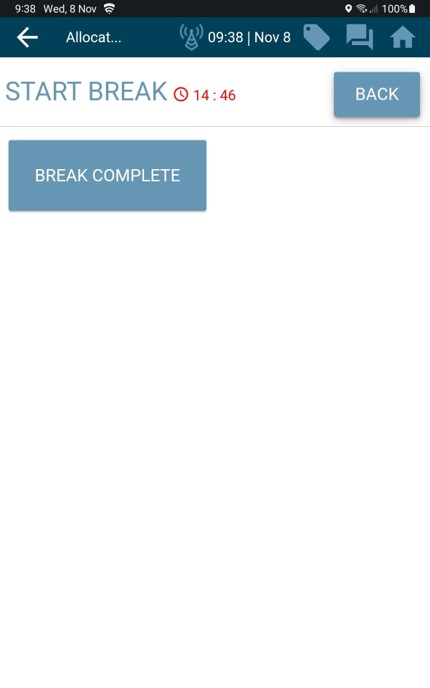
Entering Break
This section shows you how to take a break in TrackIt, making sure your time off is recorded properly and visible to Allocations and Transport.
Status cards appear throughout the delivery cycle and repeat at different times during the day. You’ll only see cards that are relevant to the status you’re currently in, so not all cards will be visible all the time.
This section explains how to take a break using the TrackIt app on your in‑cab tablet, depending on the type of vehicle you’re driving.
ReadyMix Driver
Taking a Planned Break
If you need to take a planned break during the day, follow the steps below.
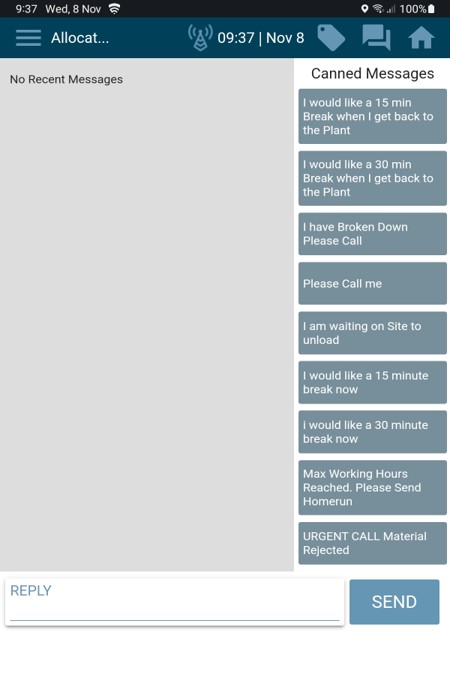
Open the Messages screen in the TrackIt app.
Send a canned break message to Allocations.
- 15‑minute and 30‑minute break options are already saved.
- If you need a different break length, type it in the reply box.
Once sent, you will be automatically navigated to your Return Plant location.
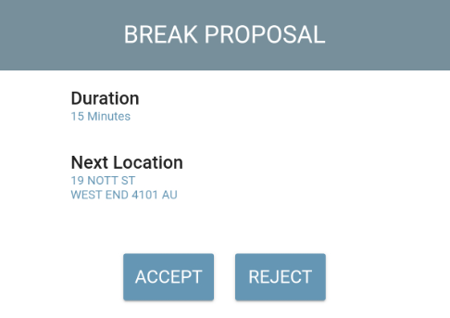
Break Proposal from Allocations
When you arrive at the return plant, Allocations will send you a break proposal.
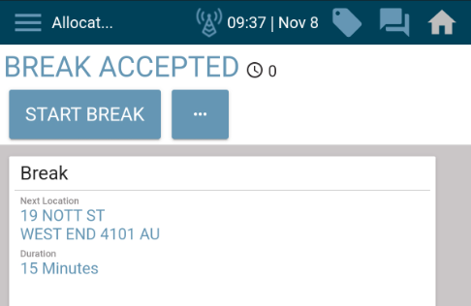
Accepting your Break
- Only accept the break proposal when you are ready to start your break.
- This ensures your break is recorded correctly and reporting remains accurate.
- Your break will begin shortly after you accept it.
Completing your Break
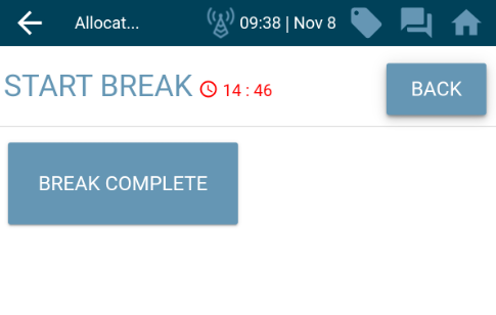
Once your break is finished, you must complete it in the app. To do this:
- Open the three‑dot menu
- Select “Complete Break”
Raw Materials Driver
Taking a Break
If you are driving a Tipper or Tanker with non‑expiring product, you can place yourself on a break without waiting for a proposal. This lets:
- Allocations know you’re on break
- Transport teams see your status clearly
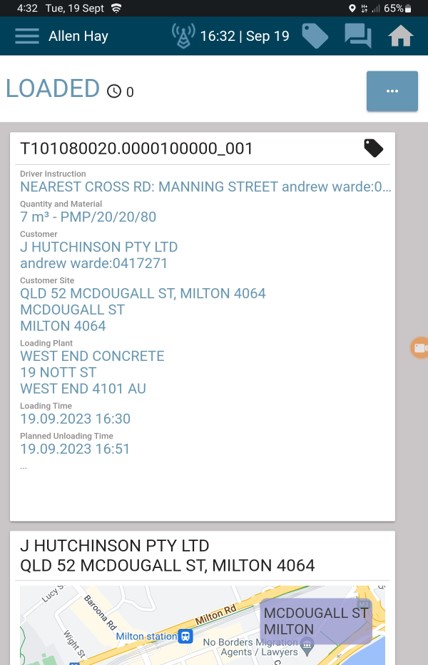
You can start a break from any status except:
- Loading
- Loaded
- Unloading
- Finish Unloading
Starting a Break
To start a break:
- Open the three‑dot menu
- Select the Extra Statuses screen
Entering a Break
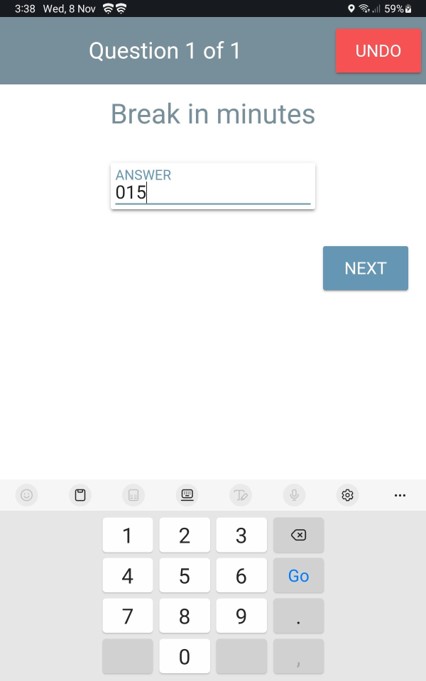
- Enter the length of break you plan to take
- Select Next
If needed:
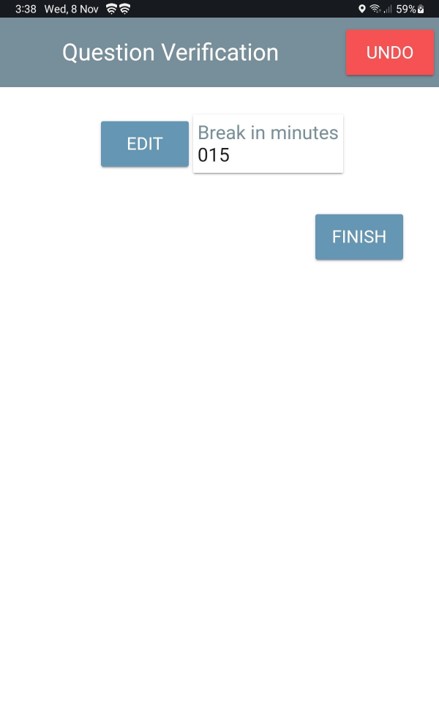
- Edit the time
- Confirm by selecting Finish
Completing your Break
Once your break is complete, you must end it manually:
- Open the three‑dot menu
- Select “Complete Break”