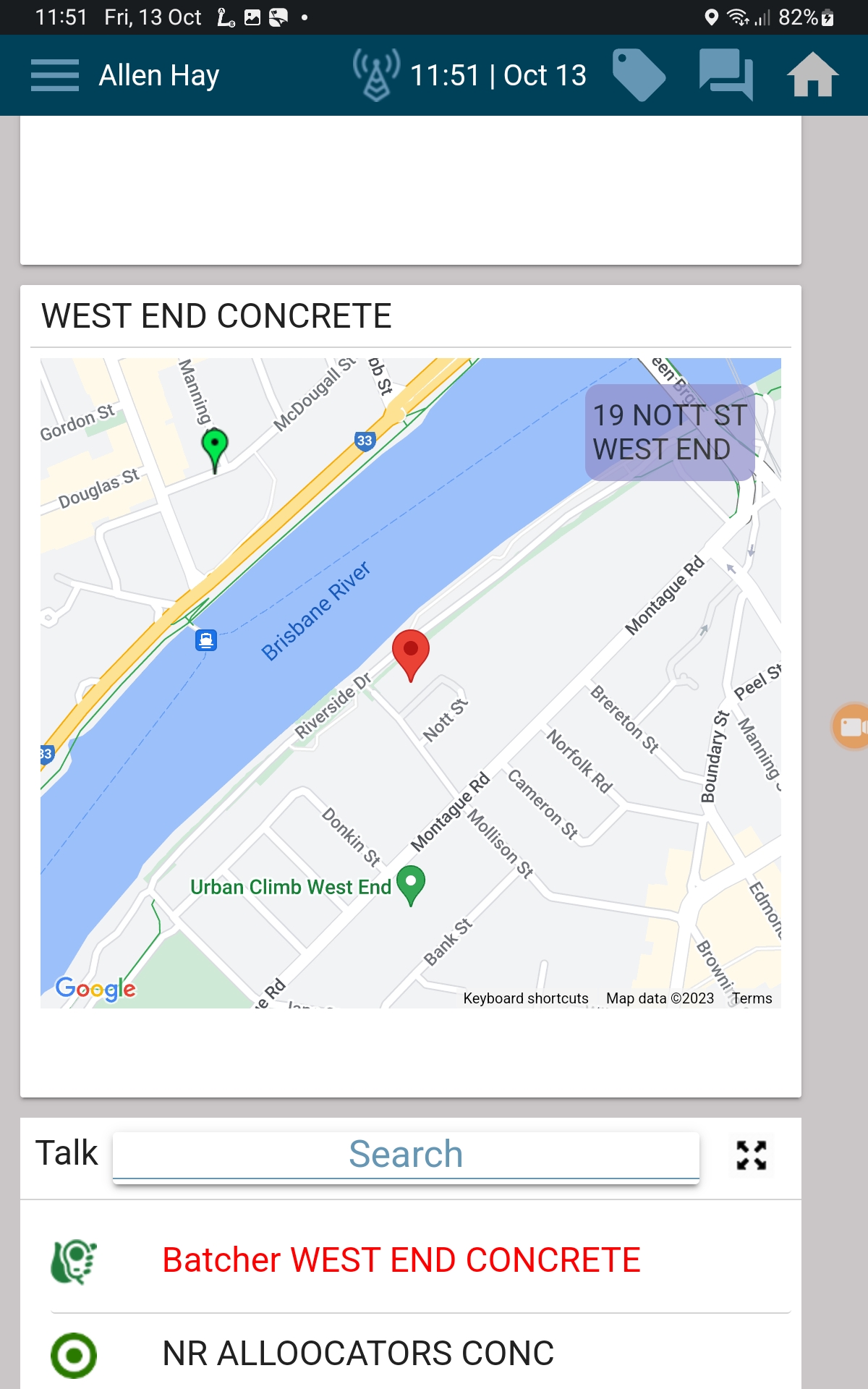
Status Cards
This section shows the Status Cards you’ll see on your in‑cab tablet while using the TrackIt app.
Status cards will appear on your screen at different points during the delivery cycle. They will come and go throughout the day depending on what stage of the job you are in, so you won’t see every card at all times.
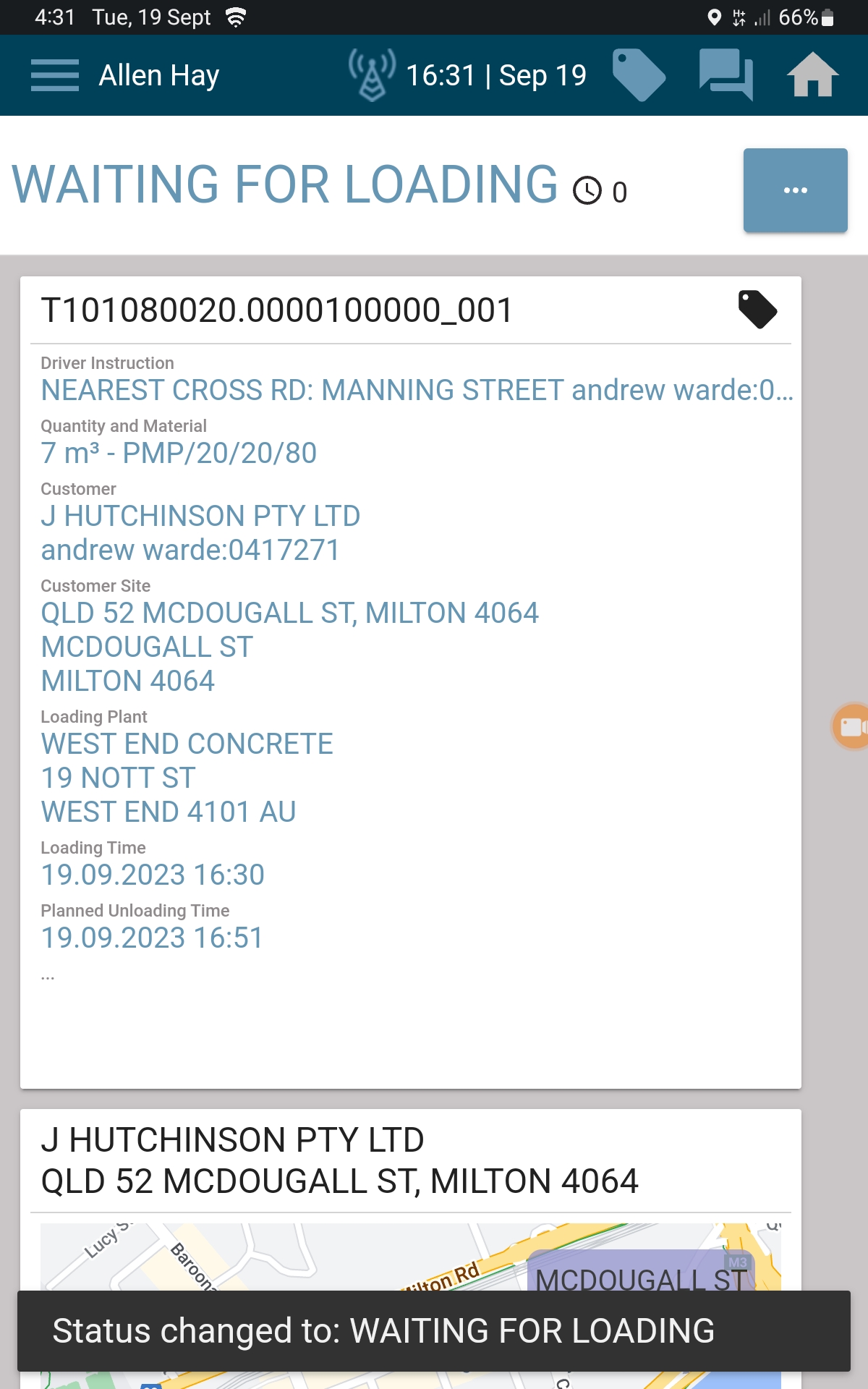
Load/ Ticket Card
The Load / Ticket Card appears once you enter “Waiting for Loading”. This means your ticket has been issued. This card shows:
- Your assigned load details
- Your delivery information
You can tap the card to expand it and see more detail when needed.
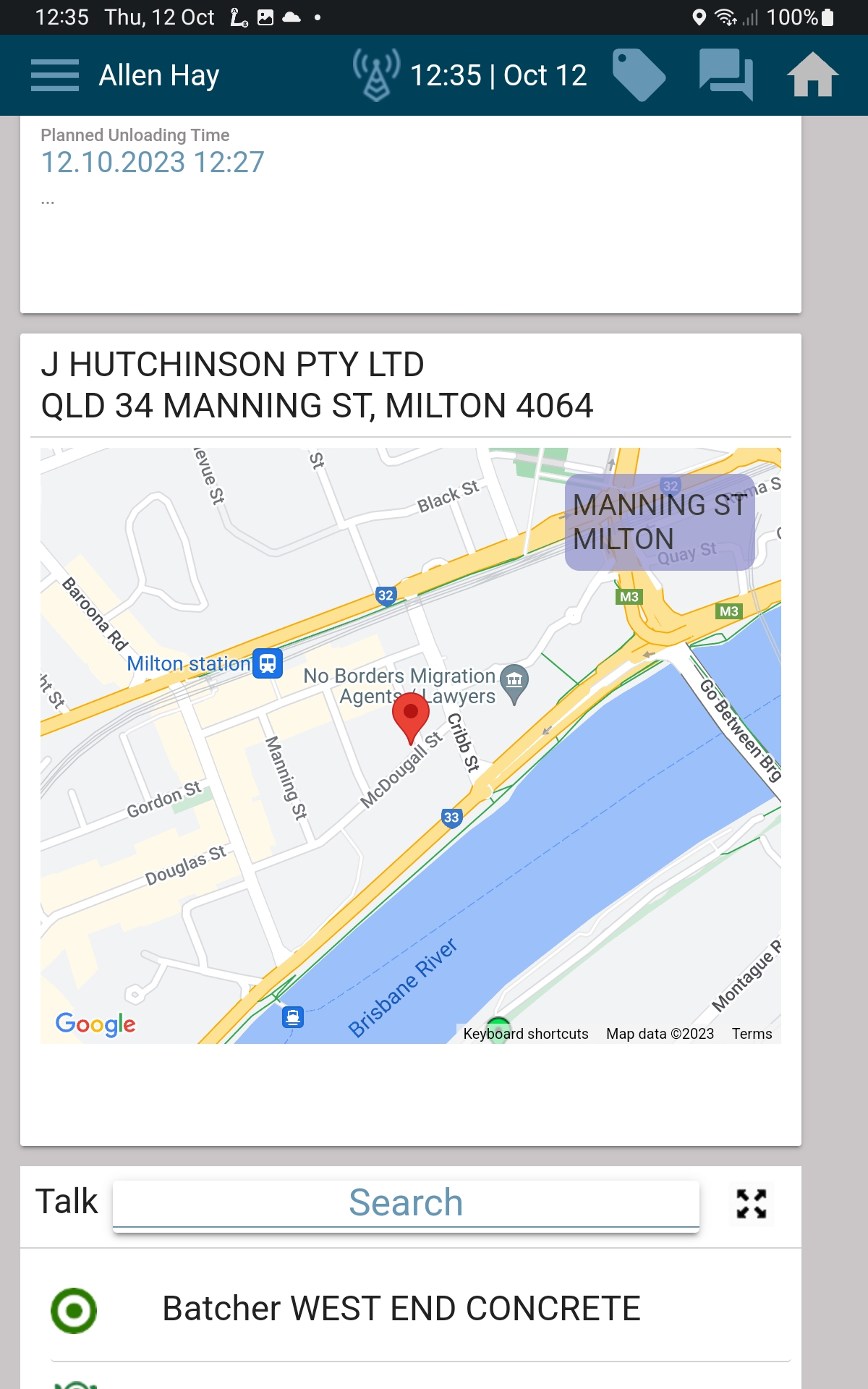
Navigation Card
The Navigation Card also appears after you enter “Waiting for Loading”. This card lets you:
- View the route to the job site
- Start navigation with one tap
Once you leave the plant, navigation will start automatically.
Load Information
This section shows live load details, including:
- The ticketed load volume
- The estimated actual load volume, based on drum revolutions Drum revolutions are displayed below and will also indicate whether you are charging or discharging
This helps you quickly understand what’s in the drum and what stage you’re at.
[IMAGE]
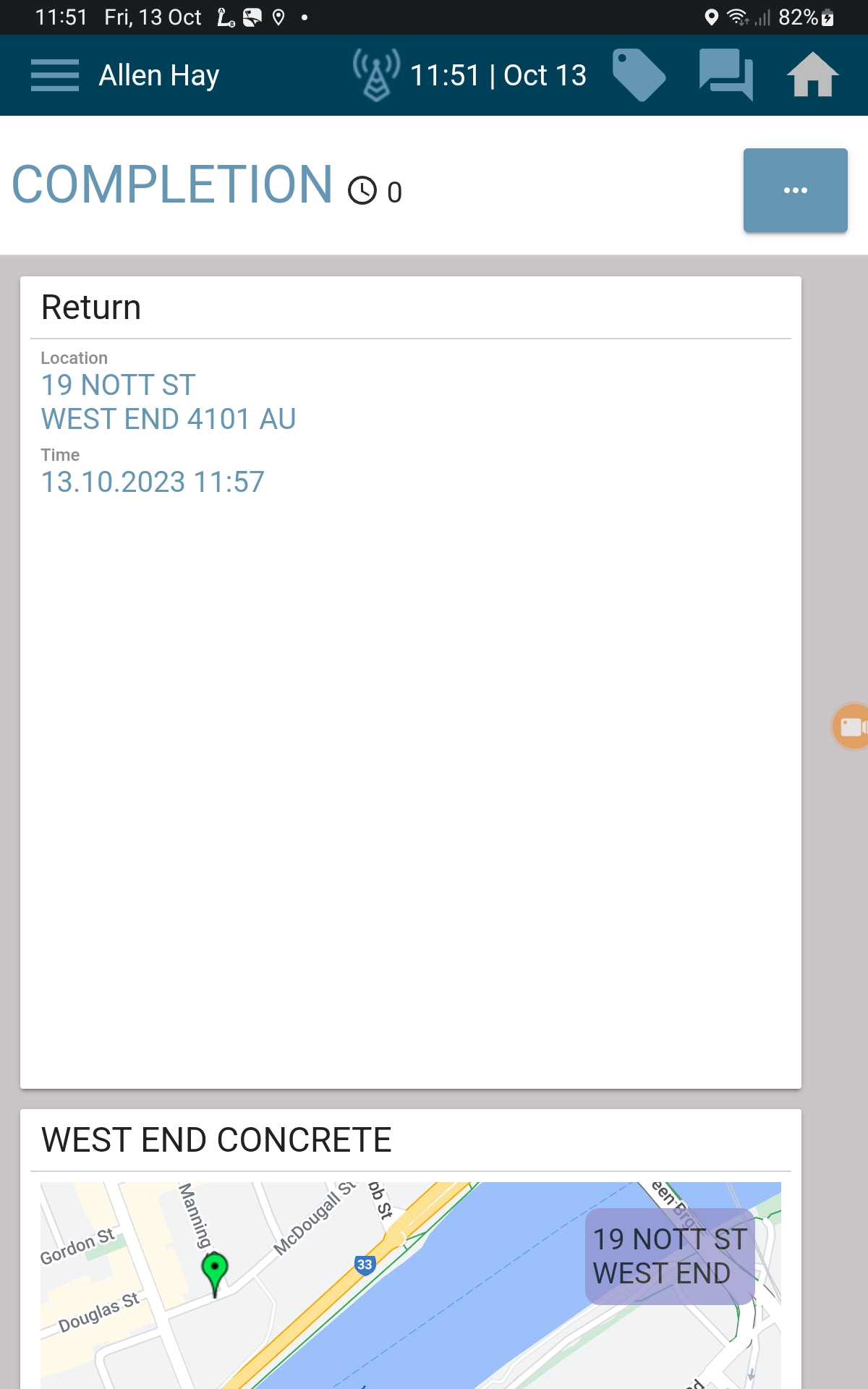
Return Location
The Return Location Card appears once the job is marked as “Complete”. It shows:
- Where you need to return after unloading
No guesswork — you’ll know exactly where to head next.
Return Navigation
The Return Navigation Card also appears at Completion. This card lets you:
- View navigation for the return location
⚠️ Important: You must tap this card before leaving site for return routing to work correctly.