Sending a Message
This section shows you how to send messages in TrackIt, helping you stay in touch with Dispatch throughout the day.
Messaging in TrackIt
This section explains how to send and reply to messages using the TrackIt app on your in‑cab tablet. Messaging can be used at any time during the day to communicate with Dispatch or Allocations.
Opening the Messaging Screen
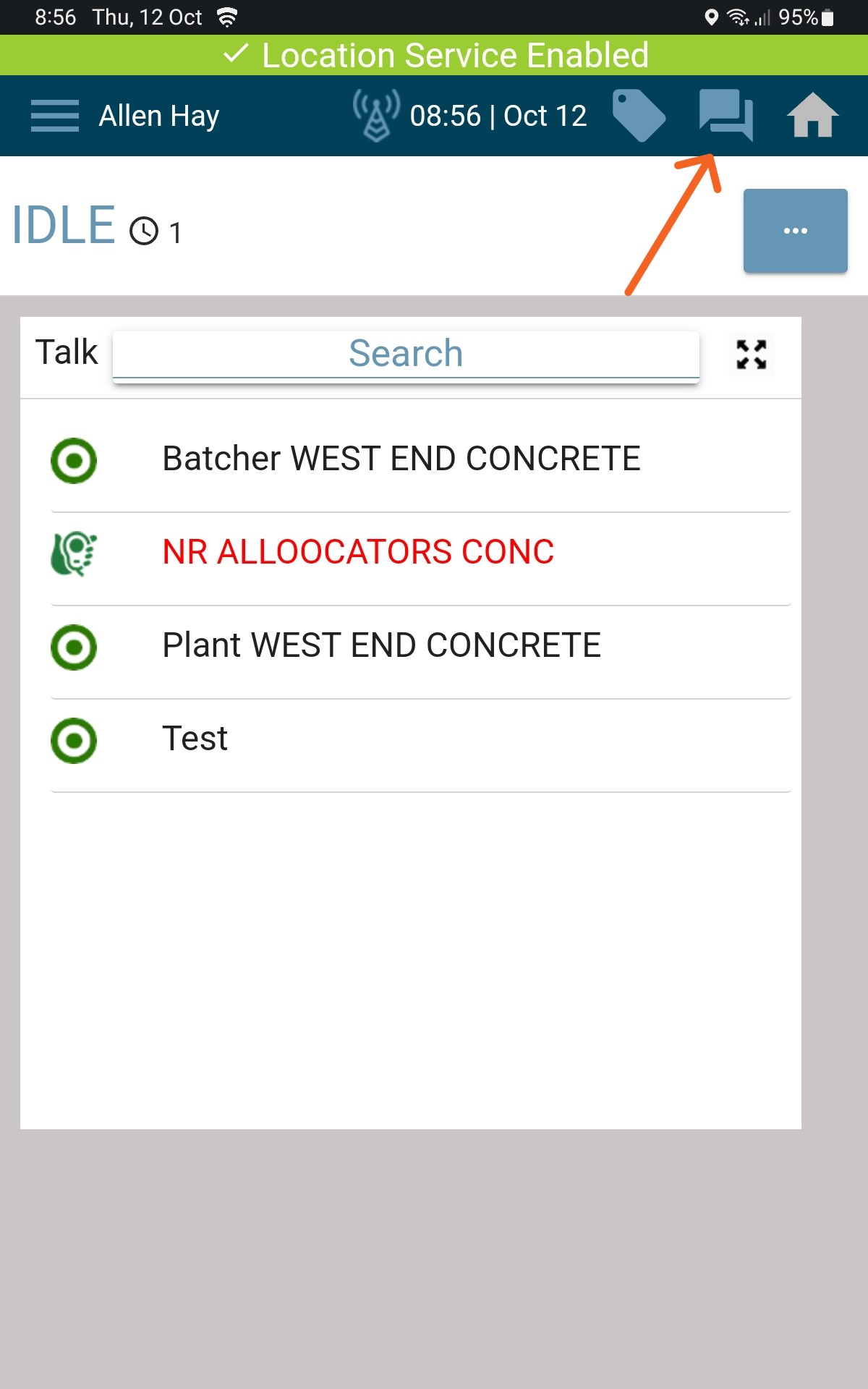
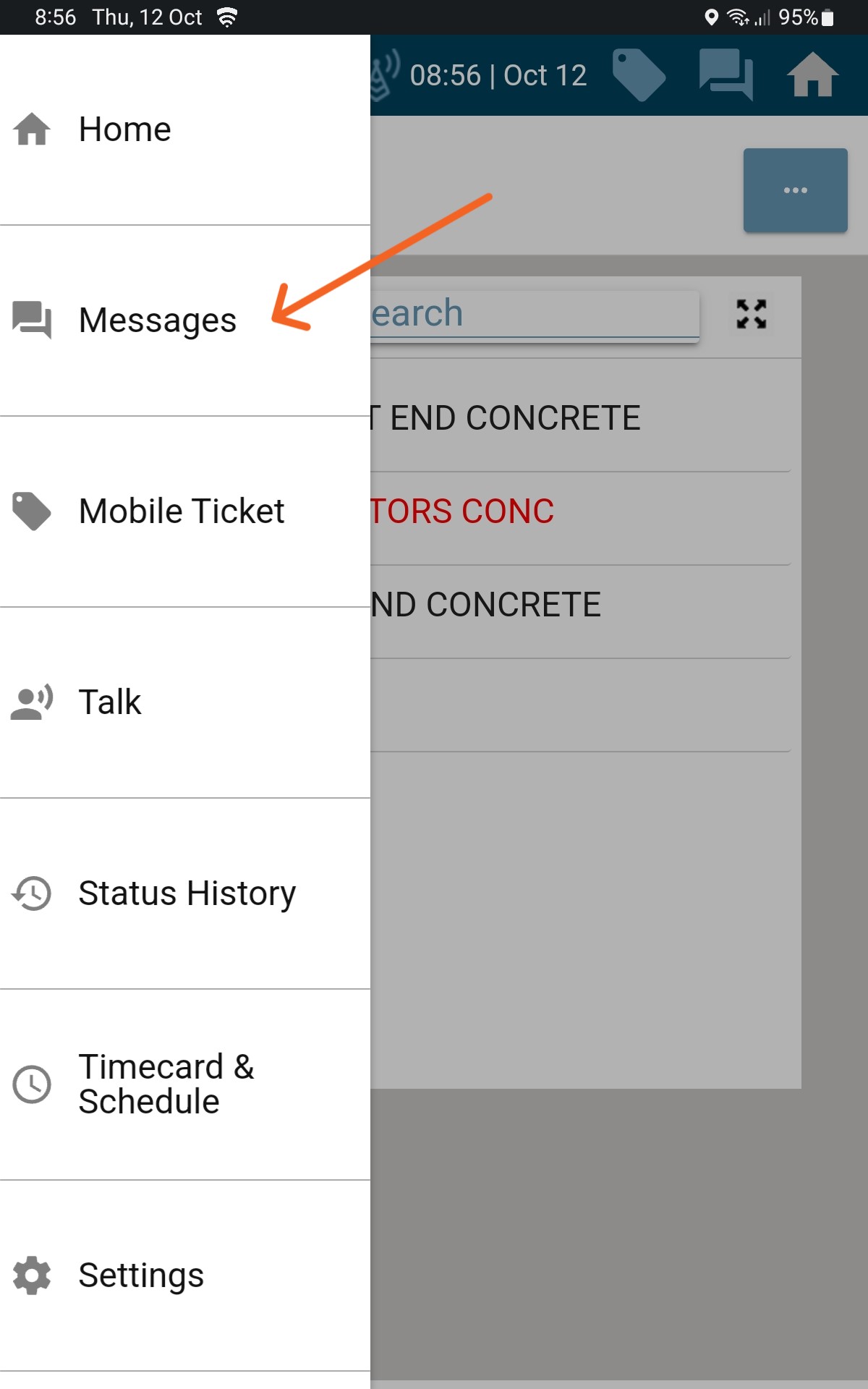
You can access the Messages screen at any point in the delivery cycle. There are two ways to open it:
- Tap the Messages icon in the top‑right corner of the screen
- Open the left‑hand menu and select Messages
This will open the main messages window.
Canned Message
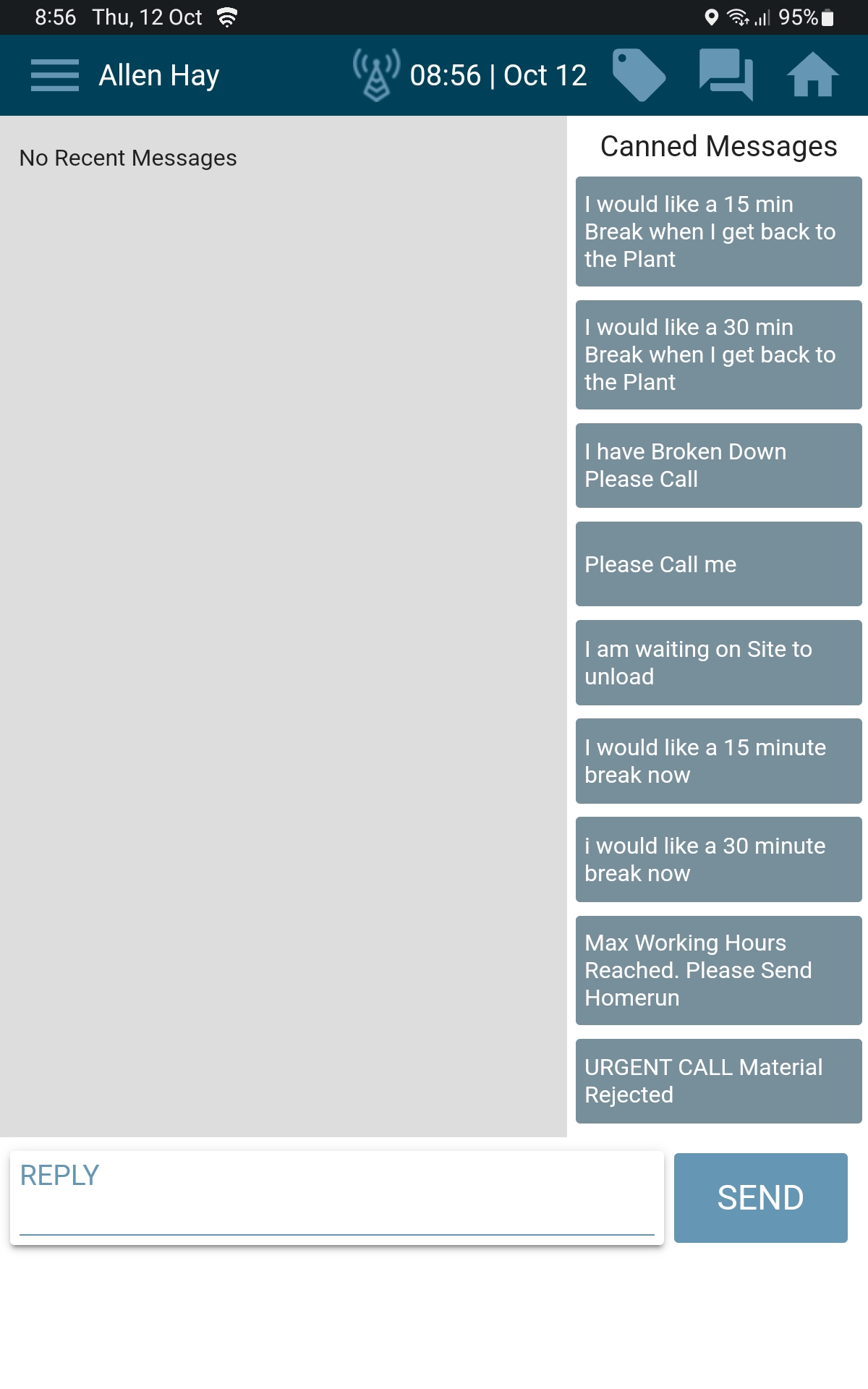
Canned messages are pre‑written messages designed for quick use.
- They appear on the side of the Messages screen
- These messages are ready to send in two taps
- Simply select the message and tap Send
Canned messages save time and help keep communication clear and consistent.
Free-Typed Message
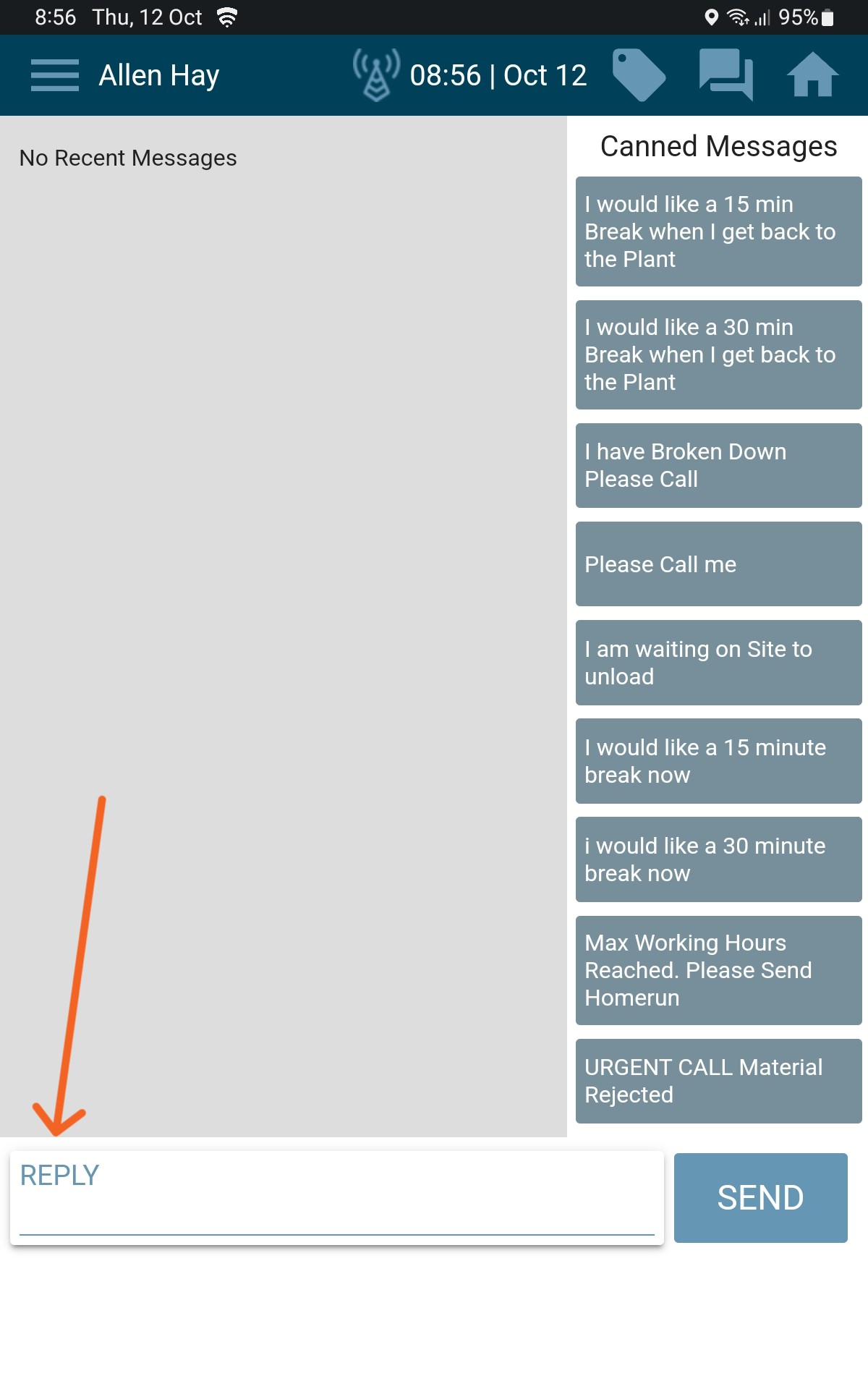
Free‑typed messages let you type your own message.
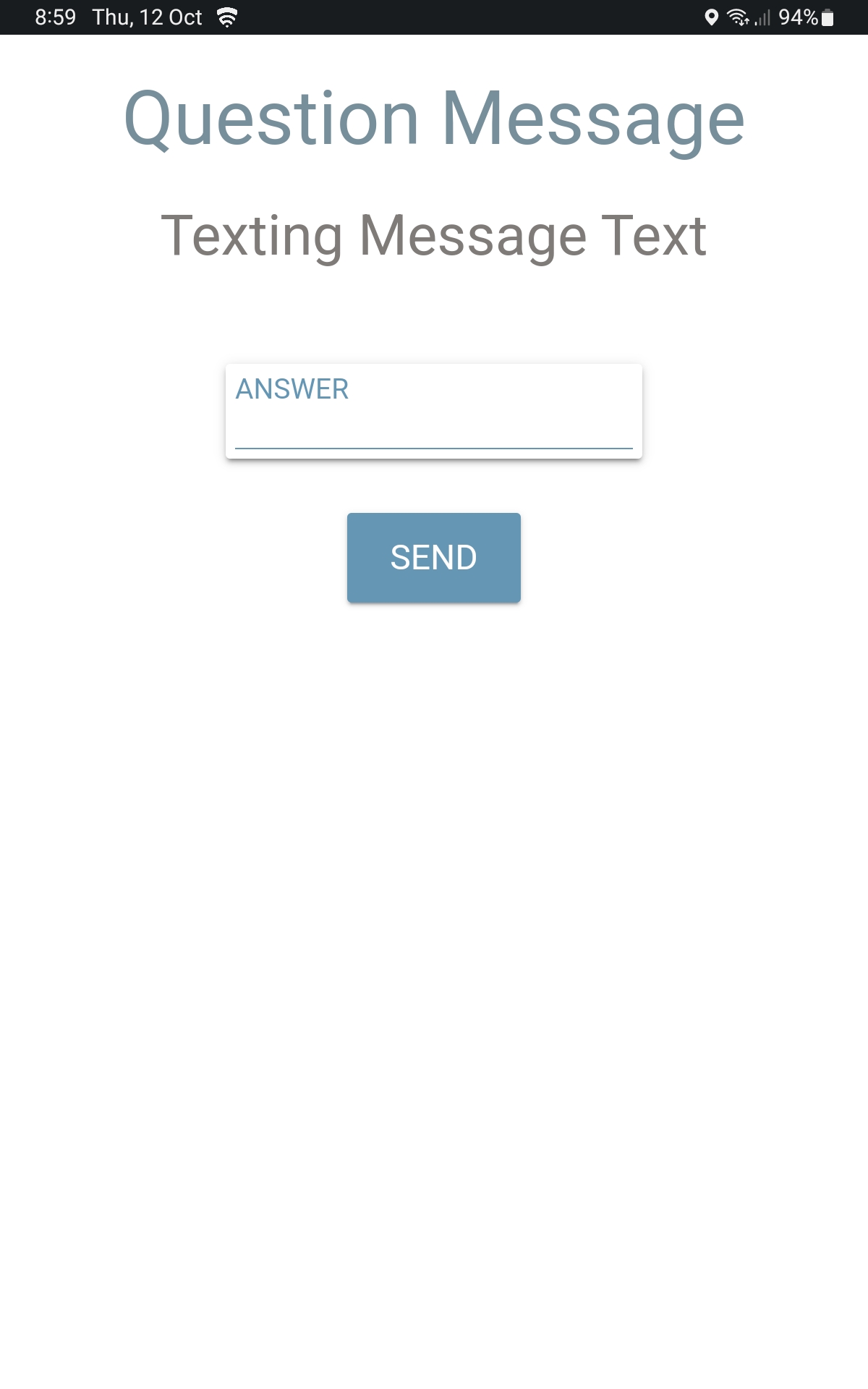
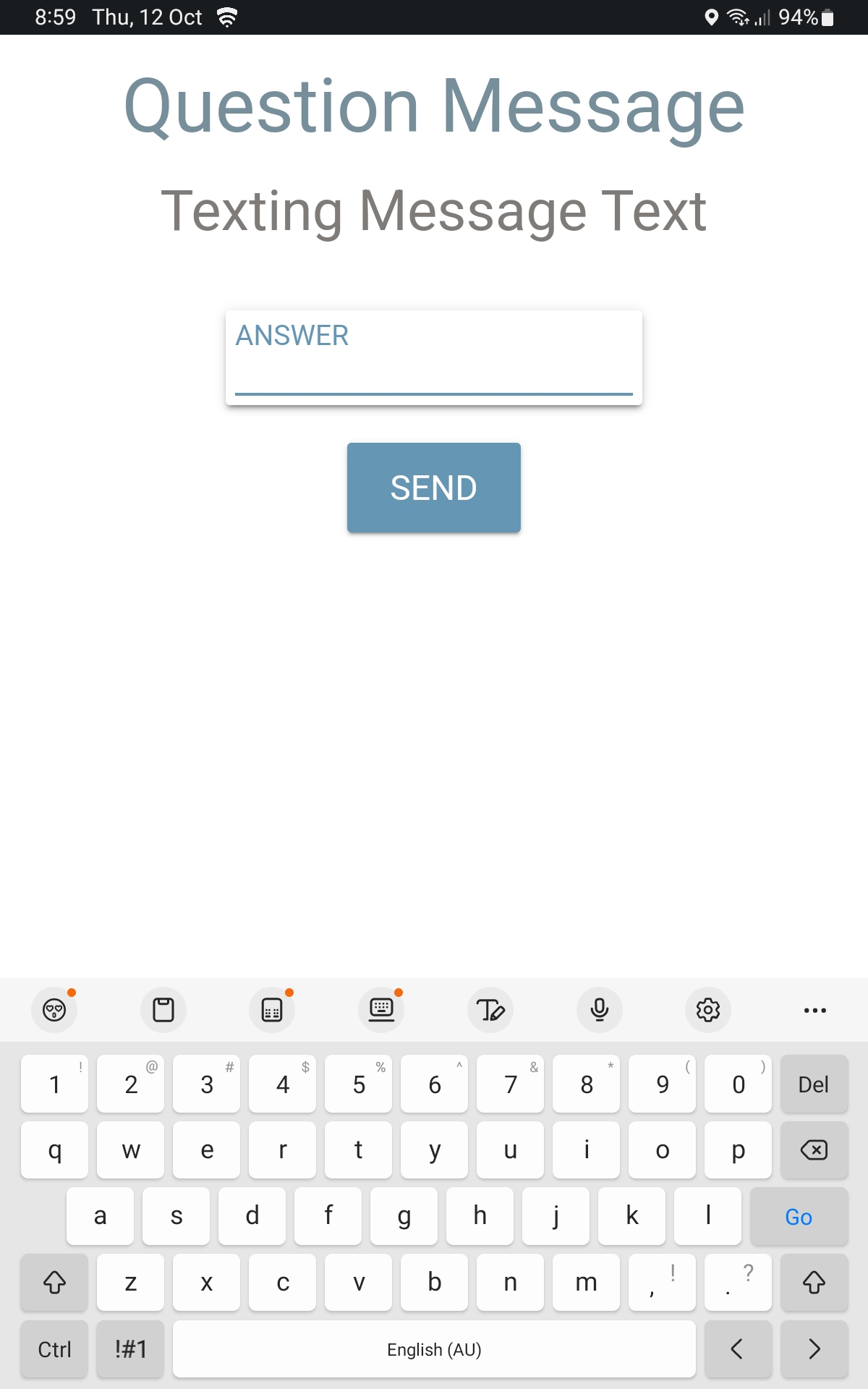
- Tap the Reply text area
- Use the keyboard to enter your message
- Send when ready
This option is useful if your message doesn’t fit one of the canned options.
Responding to a Dispatcher Message
When Dispatch sends you a message, they may ask for a specific type of response. The response options will appear automatically on your screen. Below are the different message types you may see.
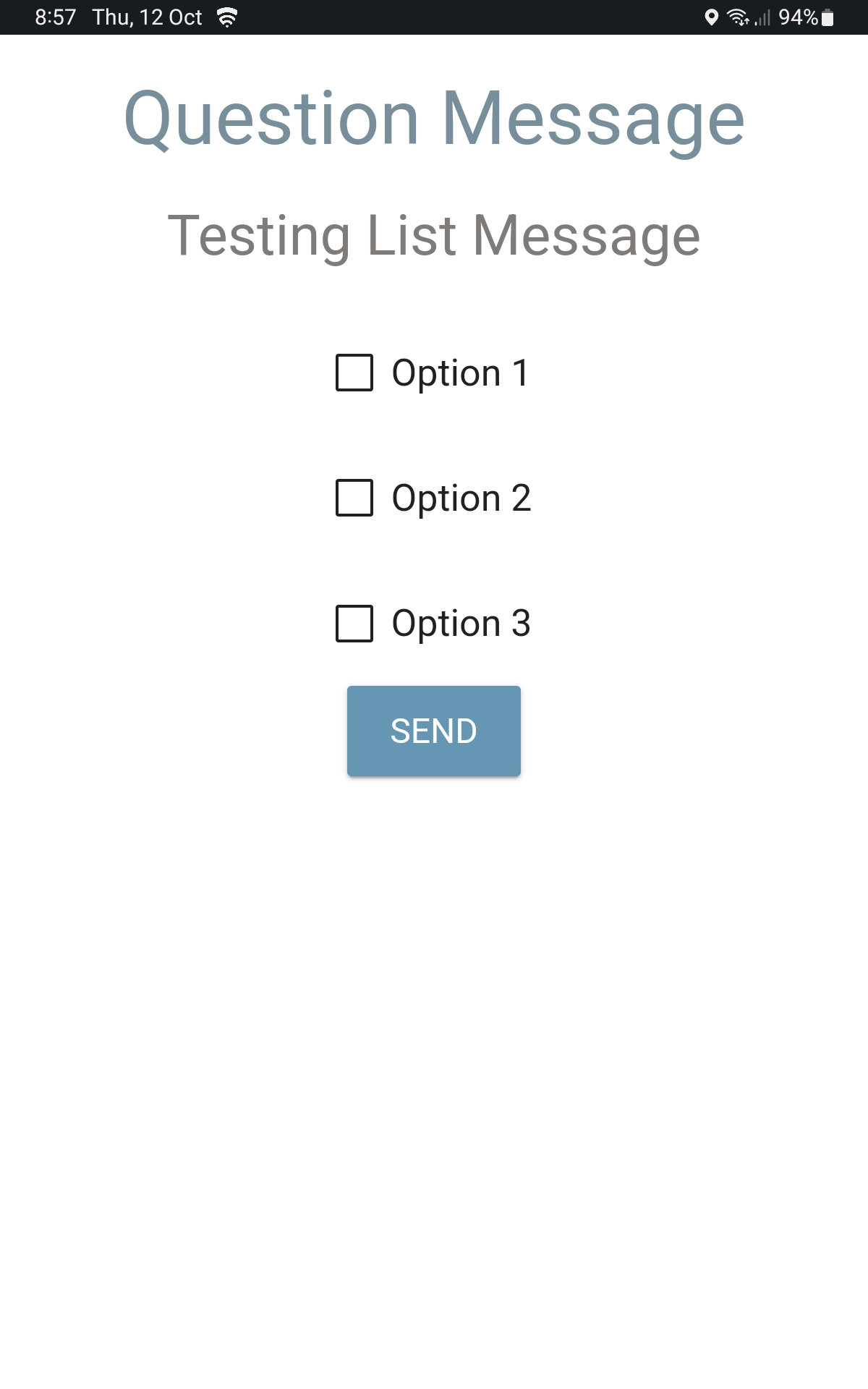
Message Type List Selection
With this message type:
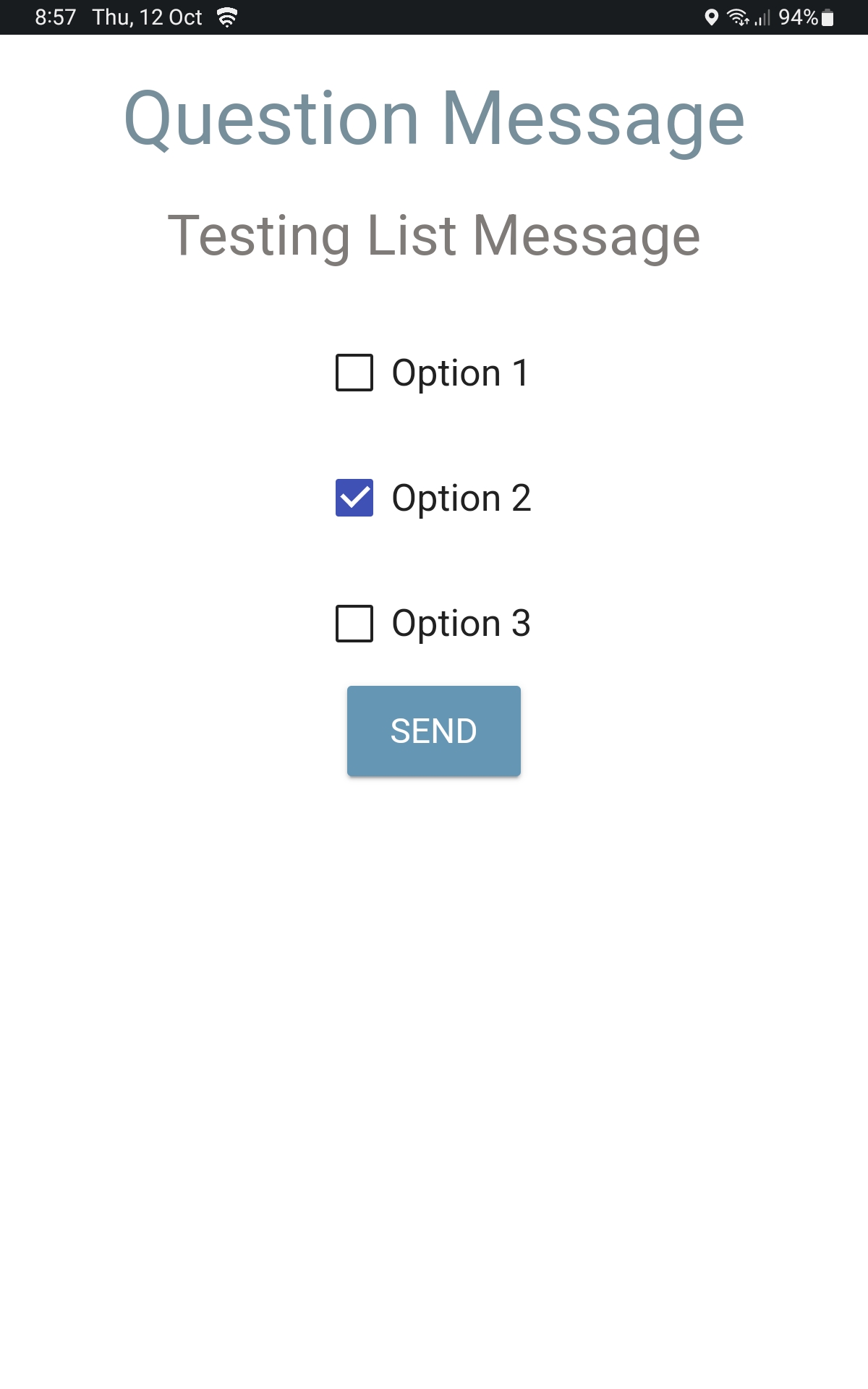
- You’ll be given a list of options
- Select the option that best applies
- The response is sent as‑is (you can’t change the wording)
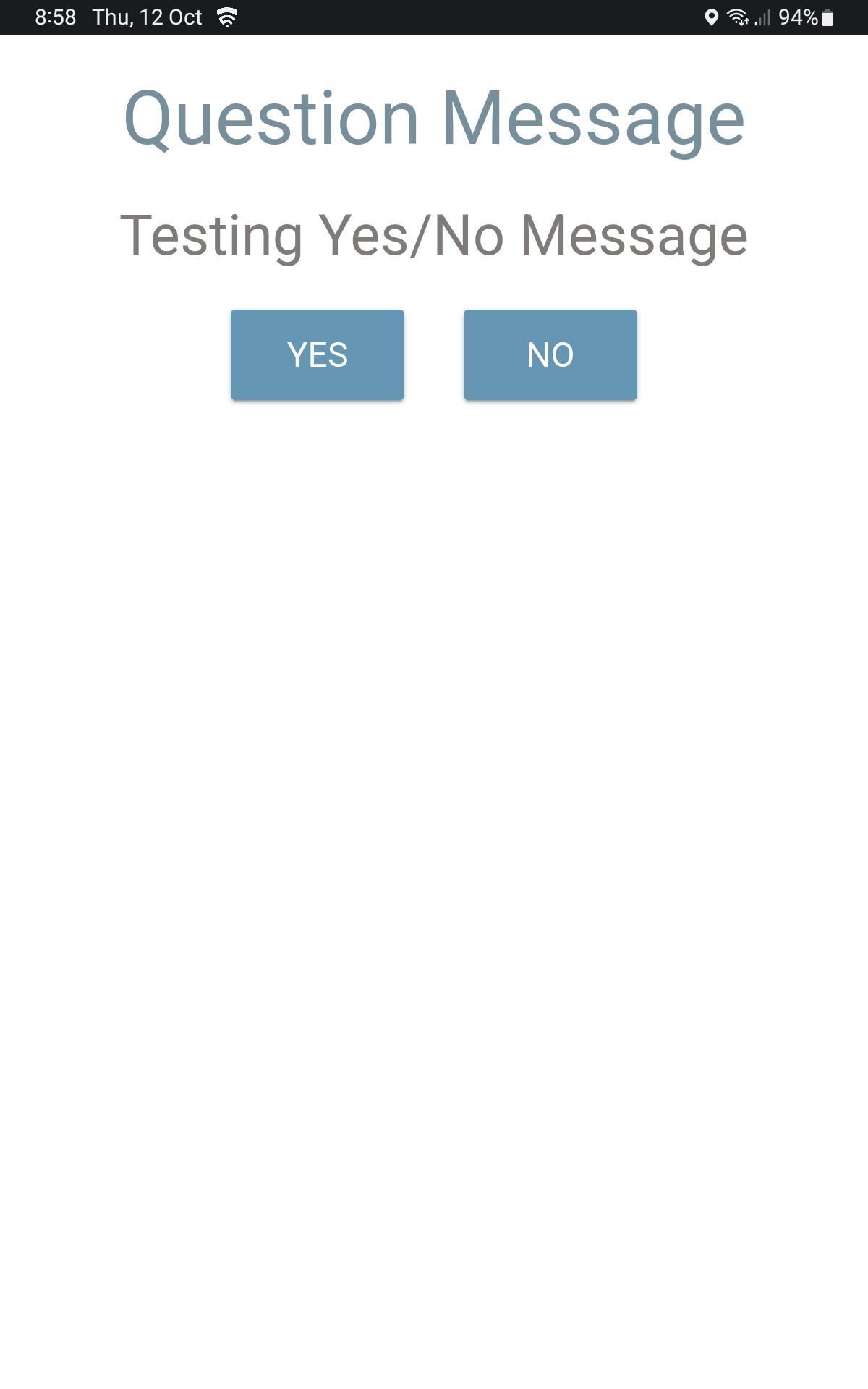
Yes / No Message
This message type:
- Gives you two options only
- Tap Yes or No to respond
This is used when Dispatch needs a quick confirmation.
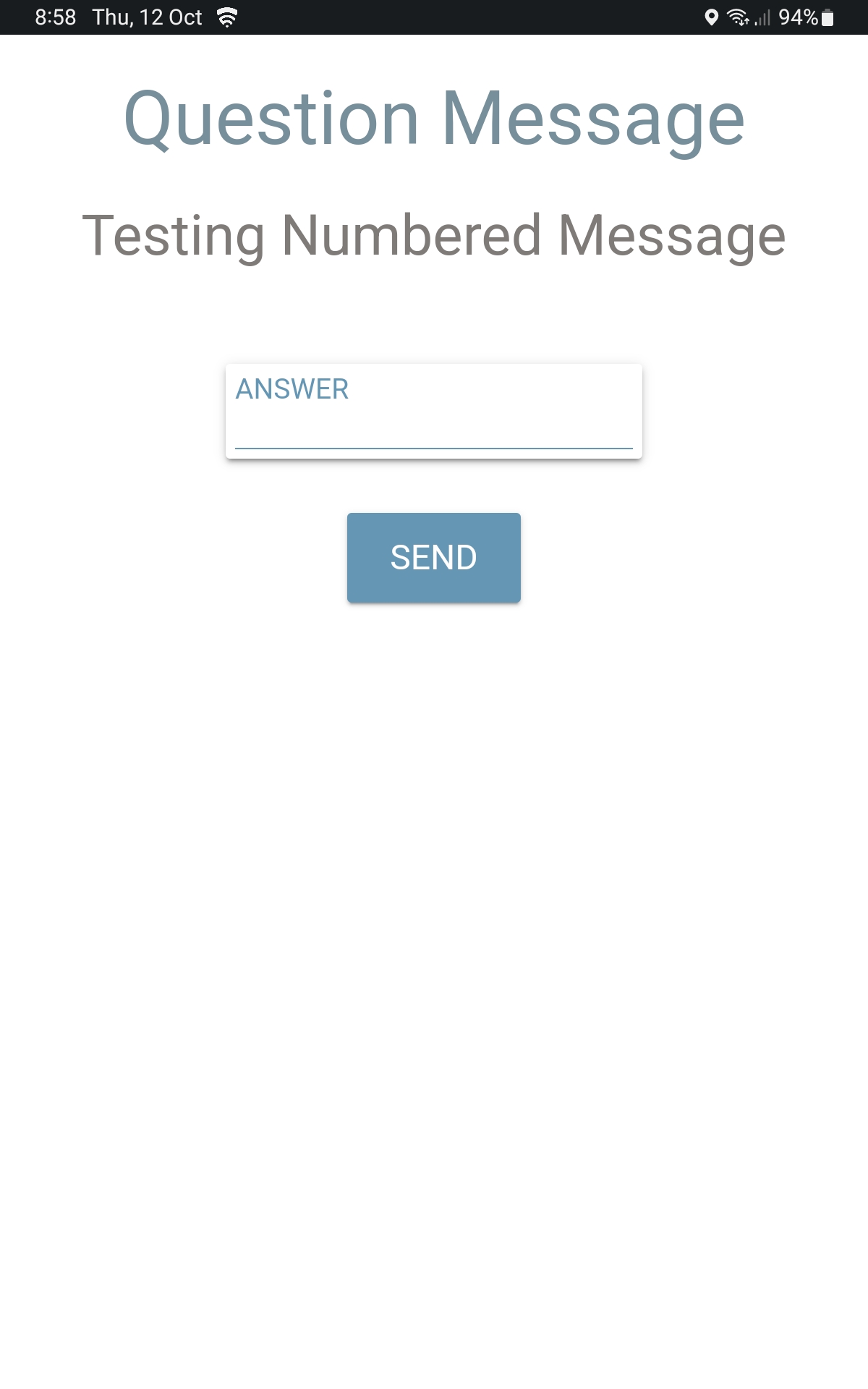
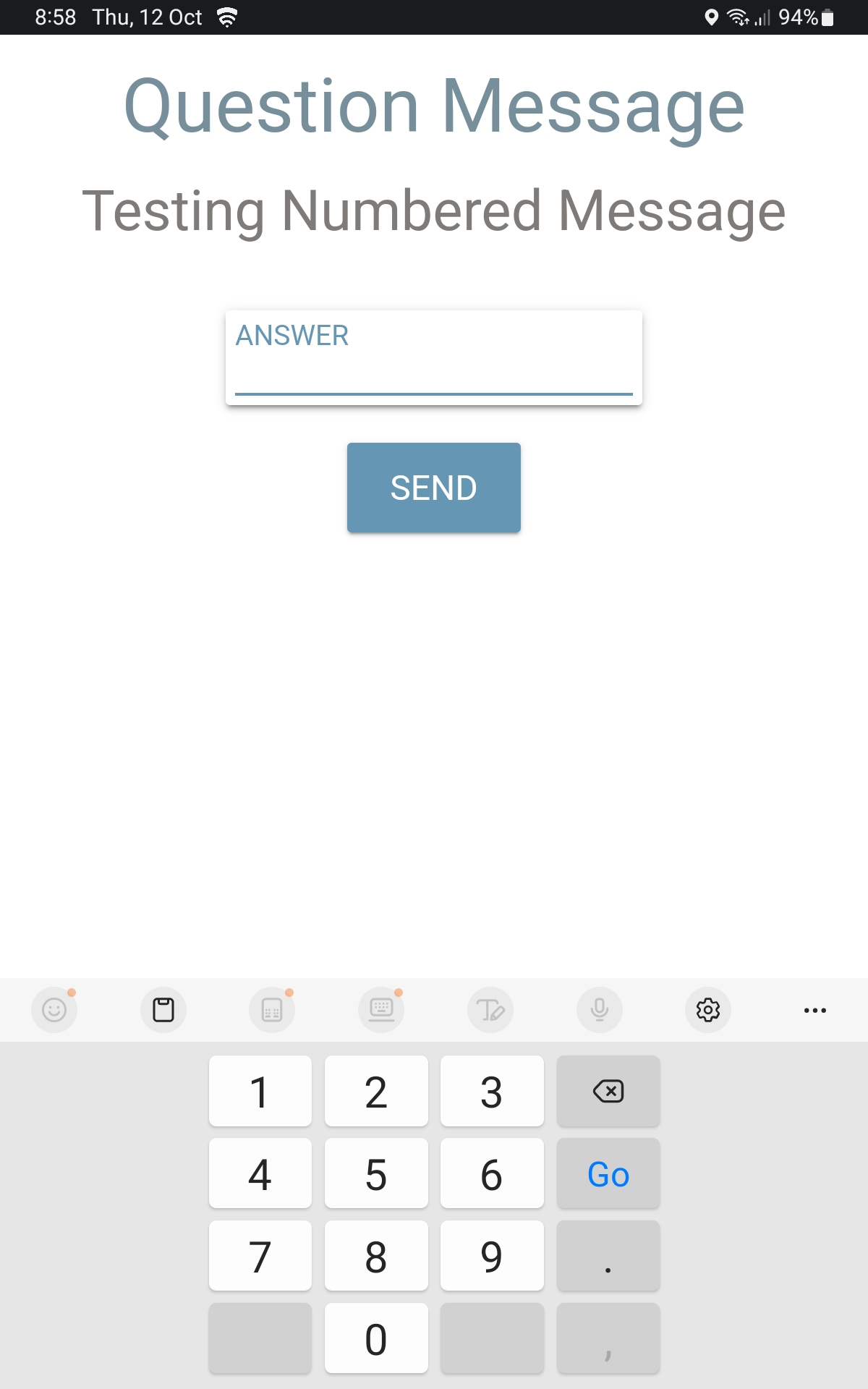
Numbered Response Message
With this message type:
- You’ll see a list of numbered options
- Select the number that applies
This may be used when Dispatch is asking:
- How long something might take
- How much product you have remaining
Text Response Message
This message type allows you to: -Type a reply using the keyboard
You may also see an option to:
- Use voice‑to‑text to speak your response instead of typing
This is helpful when you need to provide more detail.