Professional Driver Report
This section can help troubleshoot issues with adding Cartage Adjustments to Drivers App.
Using the Professional Drivers Report
Getting to the Report
To access the Professional Drivers Report enter here.
This will use your work account to log into the Report.
Select Driver
In the highlighted dropdown box, enter the Drivers Name or Employee Number.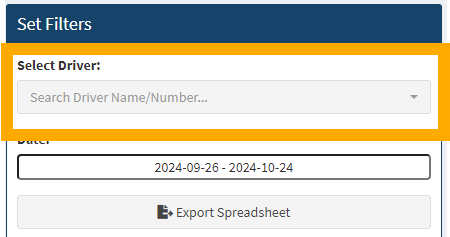
Shift Editing
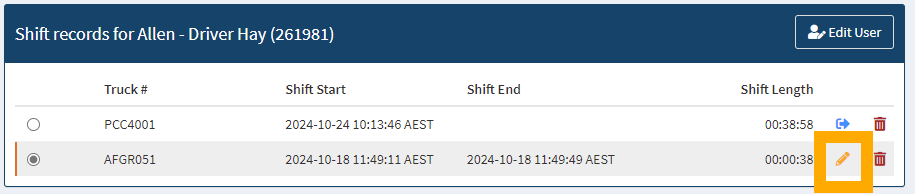
To edit a shift time, click on the pencil icon next to the shift that requires editing.
Once the Shift opens, you must select a shift end time and enter a comment explaining the reason for shift amendment.
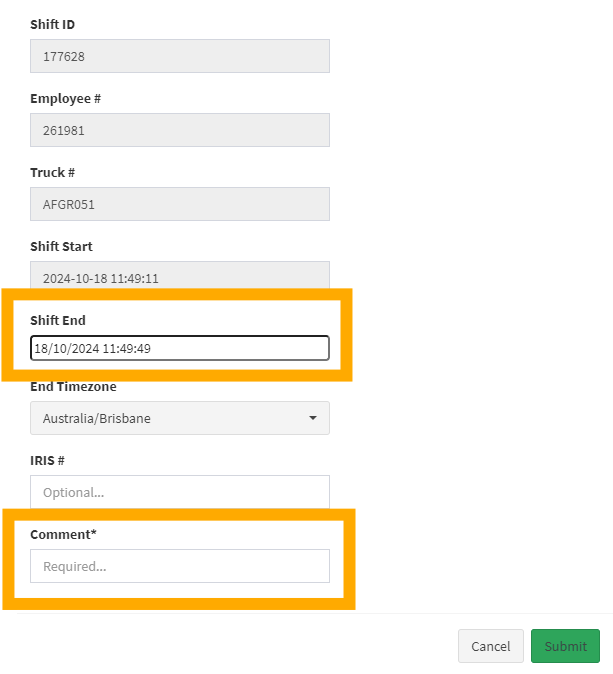
Once completed click ‘Submit’.
Manual Logout
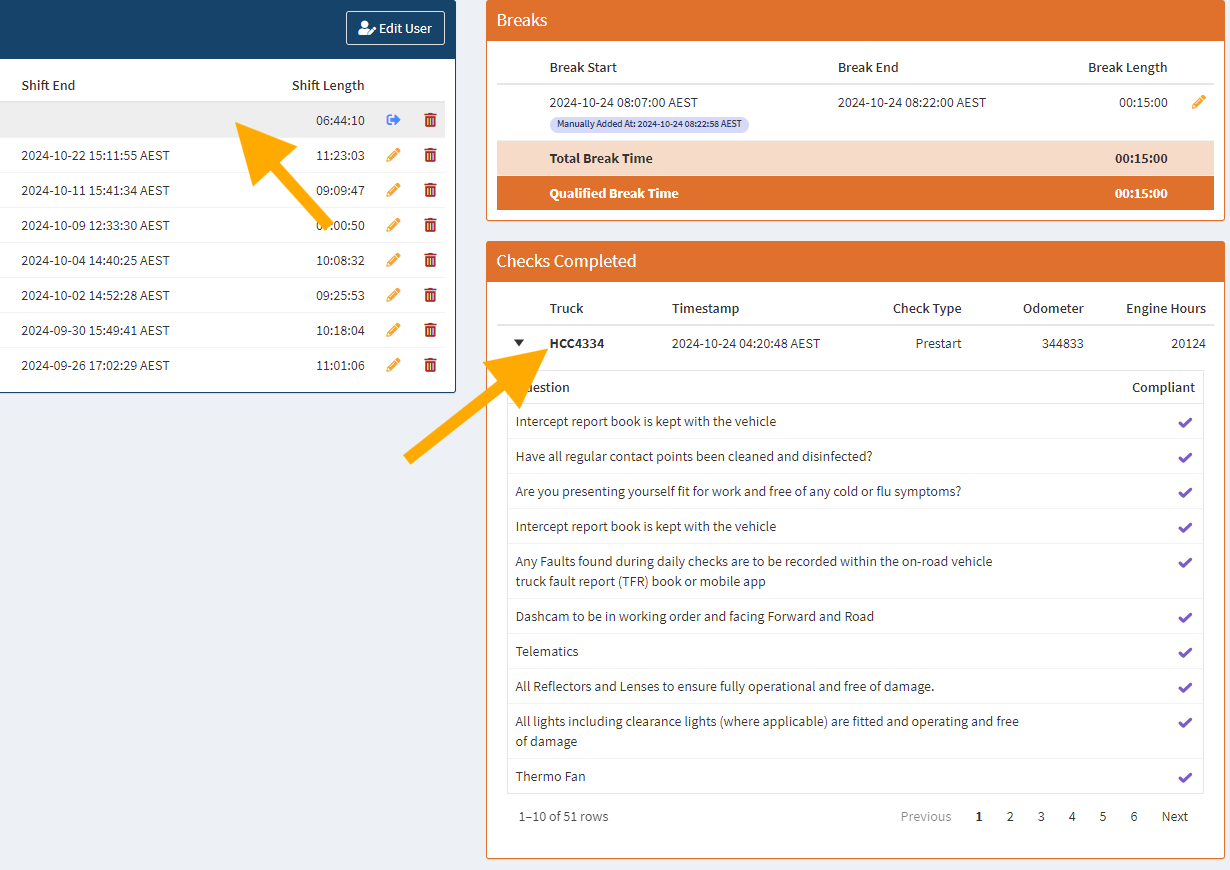
To manually log out a driver on the report, click the blue door icon on the shift you wish to logout.
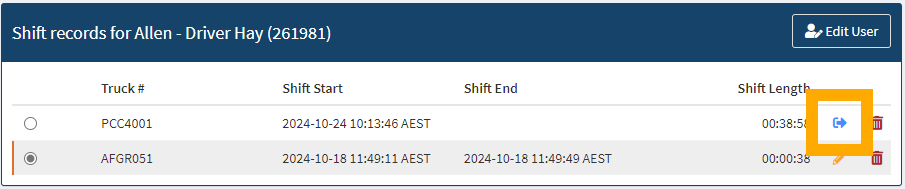
Once the Shift opens, you must select a shift end time and enter a comment explaining the reason for shift closure.
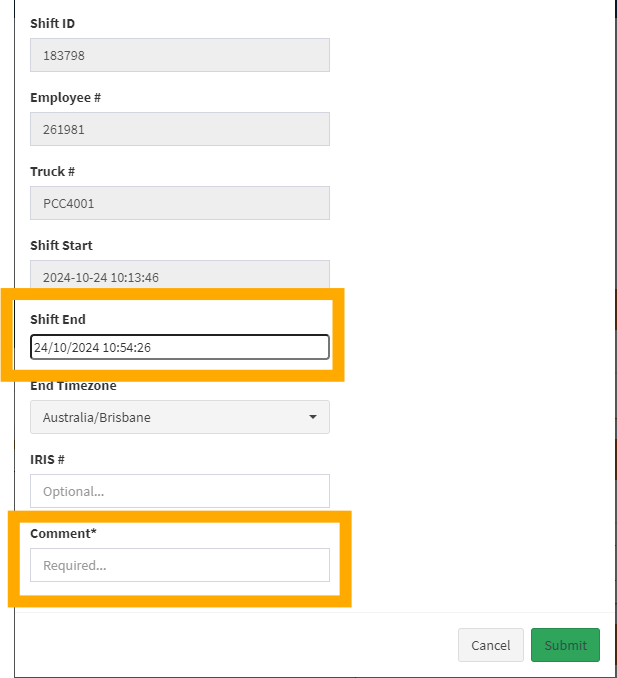
Once completed click ‘Submit’.
Break Editing
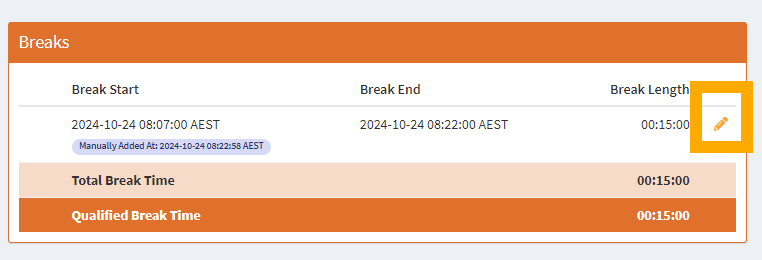
Breaks times can also be edited. Select the shift, to edit a break start or end time, click on the pencil icon next to the break that requires editing.
You must enter a comment explaining the reason for the break amendment.
Confirm with both the driver and the telematics tracking equipment to ensure it is a qualified break.
COR Checks Reporting
For every shift from the driver there is the ability to look at the checks completed by the driver. Once the shift is opened on the left; the check will appear on the right and can be expanded by clicking the truck number.